2 - Setting up DOAS in eQUEST DOE2.3
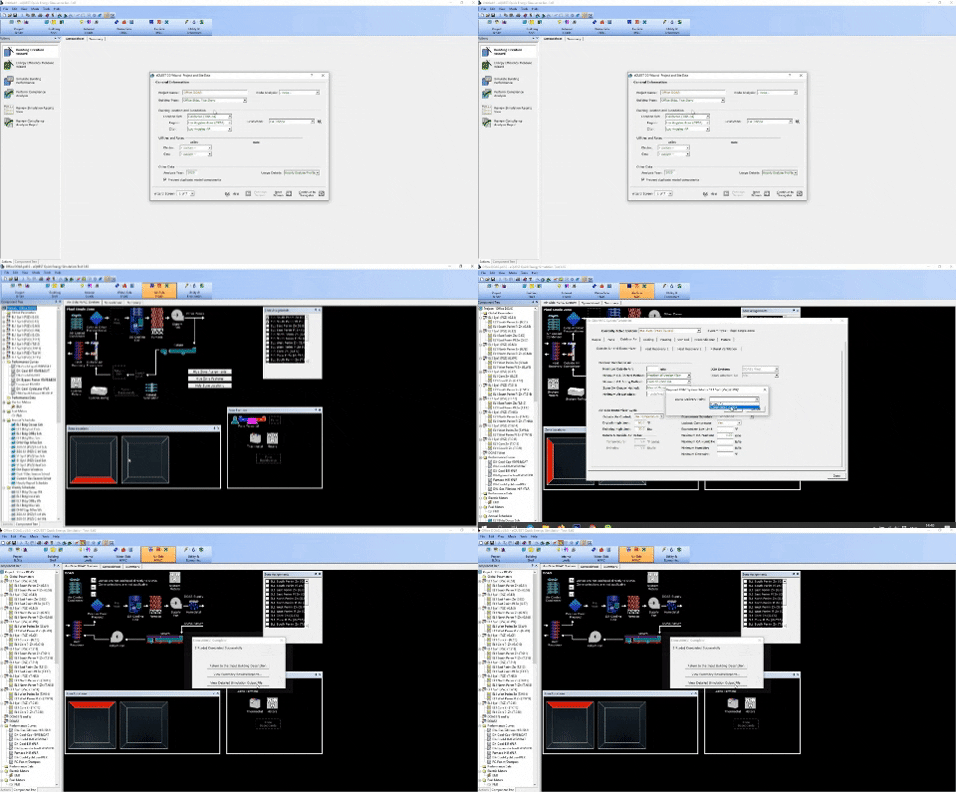
Subscriber Video Lesson
This page is paired with a full video lesson inside the subscription. Subscribers can watch the complete eQUEST walkthrough, including the on-screen setup, settings, and modeling workflow.
Script Preview
2 Setting up DOAS
Lesson summary: This transcript covers practical DOE 2.3, eQUEST, Dedicated Outdoor Air Systems, Energy Recovery Ventilation workflows for eQUEST energy modeling. The transcript has been organized with SEO-friendly headings and readable paragraph breaks so it can be posted with the corresponding training video.
Topics Covered in This Video
- DOE 2.3
- eQUEST
- Dedicated Outdoor Air Systems
- Energy Recovery Ventilation
- Practical energy modeling setup, review, and troubleshooting considerations
Introduction and Lesson Overview
The first new feature that we're going to demonstrate using the DOE 2.3 engine is the new dedicated outside air system that's been established. This is the feature that most people are excited about so we'll teach that first. What I want to show here is that we had just used the DOE 2.3 version of eQUEST and we closed out of it without changing any settings. And now we open it and here we can see that we have the DOE 2.3 engine.
Basically, we won't rewrite the initialization file unless we go to the tools menu and tell it to start up with a different engine. And it's going to remain starting with the DOE 2.3 until we tell it otherwise. One really important thing is keeping separate file directories. I found that it gets to be very confusing when you're selecting projects.
Select an existing project. We have this eQUEST 365 D3 projects. If you notice, there's nothing in here and the recent file that it had selected because we had transferred it was from the other version of the eQUEST. So in this case, I'm just going to actually make a new file and we're going to start with the DD wizard.
Let's call this something simple office, DOAS. And here we have just the two-story office. Change the locations. Something, I don't know.
Nobody lives in Idaho. It doesn't matter. Let's just pick New York. Nice four-season climate.
Creating and Assigning a DOAS System
And we can leave this custom. So for our systems, what I want to do here is just a DX system with a furnace. That's simple enough. We're going to select system per zone so that we can supply dedicated outside air to individual systems.
If we go back into the systems here, we can use different system types. Right now, let's just focus on that we want to have some type of system and we're just going to use the single zone. We could use variable air volume. We could use virtually any of these, but we're not going to do that at the moment.
So let's just return to the navigator and finish and let's get to the good stuff here. We go to air side system. I'm just going to minimize all of the systems so that I don't get confused while presenting here. There we have it.
We just set this up so that each zone gets its own system. We didn't have to do it that way, but it provides me more options to demonstrate. We can right-click on any of these and we'll create another HVAC system. I forgot to switch to detail data edit.
We'll create another HVAC system. We'll create it from scratch. System type is DOAS. We only have a furnace set up at this point, but we can set different hot water loops to provide heat to the DOAS if we've already defined them.
Creating and Assigning a DOAS System Continued
I'm not going to click this now because then we'll have to define it. We're just going to select furnace. The cooling source is just going to be electric DX. I should have given this a better name, but I can change that right here.
DOAS 1, and I don't know if we can call it 1 West. It's done there. We're going to open this back up, but I want to make a point here. Historically, some of the workarounds that we've taught require you to make a dummy zone and a dummy room, dummy space, and so on.
That had to be at the very top. In the new version of the DO2 engine, the dedicated outside air systems can be located below your systems, making it a lot easier to create. More than that, we are not limited to having just a single scenario set up. We can have multiple options.
Naturally, if you have a number of options and you start to mix and match them all over, you're probably going to have some problems. This is pretty straightforward. We said the West system. Click this one, West EL1GW4.
I'm going to go outdoor air on this system. Here we can define the DOAS system as DOAS 1 West. It's going to prompt you whether or not it's mixed air or whether the outside air is provided directly to the conditioned zones. The mixed air means that the dedicated outdoor air is going to put the outside air that's conditioned into the air handling unit itself, and then the mixed air is going to deliver itself to the space.
Creating and Assigning a DOAS System Continued
If you have conditioned zones, what that's going to do is, for example, if you have conditioned outdoor air to 60 degrees, that's going to take a set of 100% outside air and have that ducted directly into a space. Simultaneously, the air handling unit will also have the recirculated air ducted into that space. We effectively have two systems on one zone. With the air delivered directly to the zones, we have the benefit of providing exactly the correct amount of outside air that's needed for each space, which is really nice for the new 90.1 requirements that penalize you if you overventilate a space.
One thing that EQEST will not take into account is the thermal comfort. If you have a duct and you have dedicated outside air that's coming in at 55 degrees all the time in cooling mode, it's not going to take into account that that air may be falling onto one particular person in a classroom or something like that. If you recall, EQEST assumes that once the air enters a space, all of that air is immediately mixed. Of course, that's not the case in reality.
So this will do your energy calculations fine, but as far as thermal comfort goes, that design decision will be up to you. Right here, I'm going to select condition zones and click done. You'll note we can go to another system. Select outside air.
Select the dedicated outdoor air. And in this case, we also get to define the delivery point, which is really neat, because it allows us to send air to rooms in one case or send it directly to an air handler in another case, at least in theory, this should work. It may impact the control of the DOAS unit, but we're going to do that in a different way. We're going to do that in a different way.
We're going to send air directly to an air handler in another case, at least in theory, this should work. It may impact the control of the DOAS unit, but we'll talk about that in another lesson. We're going to go mixed air with this, and then I'm going to change the name of that system. To north and west.
Creating and Assigning a DOAS System Continued
Now we can go back into the DOAS unit. We can define a number of things here. For one, the fans, we can just use the defaults because we don't have anything defined, and there's enough information in here to calculate. Since we had a DX unit using units of cooling input ratio, we can set its efficiency for the compressor, which will be different in many cases from the air handling unit that it's working alongside or working with.
We can just proceed through this just like any other system. If you see here, the outdoor air itself is grayed out or inactive fields because it's a dedicated outside air system, and all of these components don't really matter, we have to assume that this is getting 100% outside air. We have the fans defined, cooling. Naturally, all of this will be defined with conventional defaults when we created the system.
We can specify just like anything else, heating capacity, heating source. One of the things that we'll want to consider entering is the zone entering max supply temp. That number could be much higher than 60. There's actually a lot to these numbers, so we won't want to talk about it in this video, but we'll have to address how these temperature set points work in another video.
And the minimum supply temp for reset could also be lower than 65. Of course, one of the things that we really need to define for a DOAS unit that we don't typically define for an AHU unit, I can't say typically, but often enough we don't define it. Under the fans, the flow parameters, the maximum design CFM. Many times in ECMAS, we leave this blank for AHUs when it's auto-calculating the AHU CFM.
For a DOAS unit, this number is typically specified, and I don't know what it comes out to in this case. So I'm going to let it auto-size, and then of course we can reiterate once we have that number. And there you have it, it's pretty straightforward. You can add a dedicated outdoor air unit.
Setting Up the DOE 2.3 Engine
We can create another system, copy an existing component, and we can have another one. Not defining anything in particular, I'm just adding this to the project. And just for the fun of it, we're going to add this again to the outdoor air. So we have to specify now the second DOAS system, and again we can do this to a conditioned zone or mixed air.
We'll put it at conditioned zone just for fun at this point. If you recall, we had enabled air-side economizers using the default systems in the DD Wizard. And we're just going to leave those run for now to see what happens in this version of E-Quest if we try to run an economizer with the DOAS. And now all that's left is to calculate.
And here, as is normal when using new software and trying new things, we had something terminate the calculation. So we look at the error messages, and my guess is the fatal error was this. So what we're going to do here is I'm going to disable all of the economizers in the systems that have dedicated outside air. And the less system on the first floor undefined.
We'll simulate again. This is how we set up DOAS. It's now as easy as setting up a regular system and assigning it to another. What's really neat is that the program didn't crash out even though we have the outdoor air supplied as mixed air to the north unit.
And we have it supplied to the zones in the west unit from the same dedicated outdoor air unit. When you're modeling some of these advanced scenarios like this, you want to validate your results by looking at hourly reports and verifying everything's working the way that you think it is. Because this system setup that we just used is uncommon and maybe it runs, but maybe not correctly. We'll discuss how the DOAS controls are impacted by the condition zones settings or mixed air settings in the next video.
Setting Up the DOE 2.3 Engine Continued
If anyone knows whether the DOAS set to condition zones and mixed air doesn't work, please let me know. It's definitely not very common. Anyway, that is all there is for the DOAS initial setup. Obviously the big quantum leap for DO2.3.
Practical Takeaway for Energy Modelers
This lesson provides practical guidance for modelers working with DOE 2.3, eQUEST, Dedicated Outdoor Air Systems. Use this organized transcript as a reference while watching the video and applying the workflow inside eQUEST.